
Zendesk Integration
Customer-reported bugs, with all the context support actually needs.
Customer reports in. Engineering-ready ticket out.
JotGo turns the messy back and forth between support and engineering into a single, structured handoff. Every Zendesk ticket created through JotGo carries the screenshots, environment data and field mapping your team relies on.


See It In Action


Why It Matters
Developers shouldn't have to play detective. When a customer says something is broken, the agent needs visuals, environment data and reproduction notes before engineering can do anything useful.
JotGo gives developers one capture flow that produces a fully formatted Zendesk ticket. The Issue Type, Status and Priority you have configured carry over automatically, so tickets follow the workflow your team already uses.


What You Get
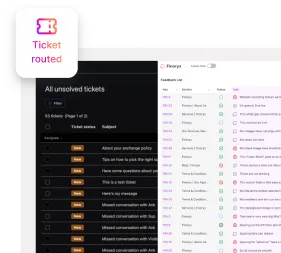
Tickets routed by project
Map each JotGo project to the right Zendesk project so customer reports never end up in the wrong support queue.
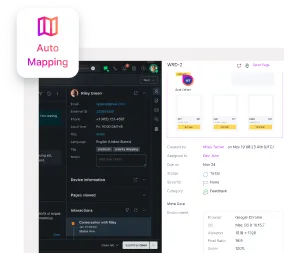
Workflow mapping done once
Set Issue Type, Status and Priority mapping in JotGo and every Zendesk ticket inherits the structure your team has already agreed on.
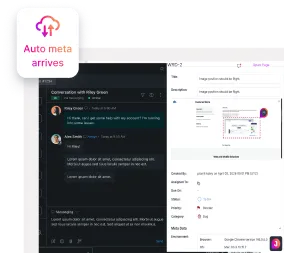
Reproduction context built in
Every ticket arrives with screenshots screen recordings and metadata, so support can hand off to engineering without an extra triage call.
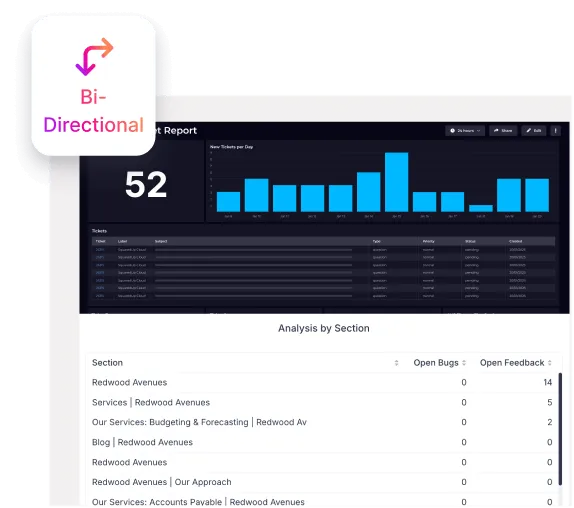
Bidirectional updates, no copying
A field change in Zendesk syncs into JotGo. A status update or comment in JotGo posts back into the Zendesk ticket. Both systems stay current.

Pro tip:
When a customer issue needs more than the defaults, use Add More Info during capture to fill in Expected Results, Assignee or any custom Type, Priority or Category. JotGo will reflect each input back into Zendesk according to your mapping.
How It Works
Step 1. Connect
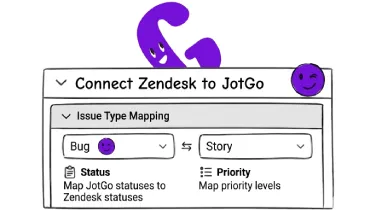
Connect Zendesk to JotGo
From Integrations, authenticate your Zendesk account, link a Zendesk project to a JotGo project and configure your field mappings.
Step 2. Capture
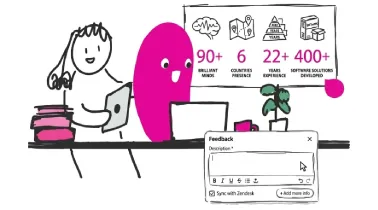
Capture issues anywhere
Use the browser extension on a customer-facing site or the JotGo canvas. The capture step records visuals and metadata automatically.
Step 3. Find it

Pick the ticket up in Zendesk
Support sees a structured Zendesk ticket with title, description, priority, status, type and attached visuals ready for triage or handoff.

Get Started with JotGo
Your next sprint deserves better bug reports.
Try JotGo free for 14 days. No credit card required.